Geometric Objects#
There are several types of geometric objects currently implemented in pymead that can be useful in creating airfoil objects: points, lines, Bézier curves, polylines, reference polylines, airfoils, and multi-element airfoils.
Points#
Points are the most fundamental geometric object in pymead, consisting only of \(x\) and \(y\) parameters. Points are used as the basis for all other types of objects. For example, lines are always drawn between two points in pymead’s geometry module.
Point Creation#
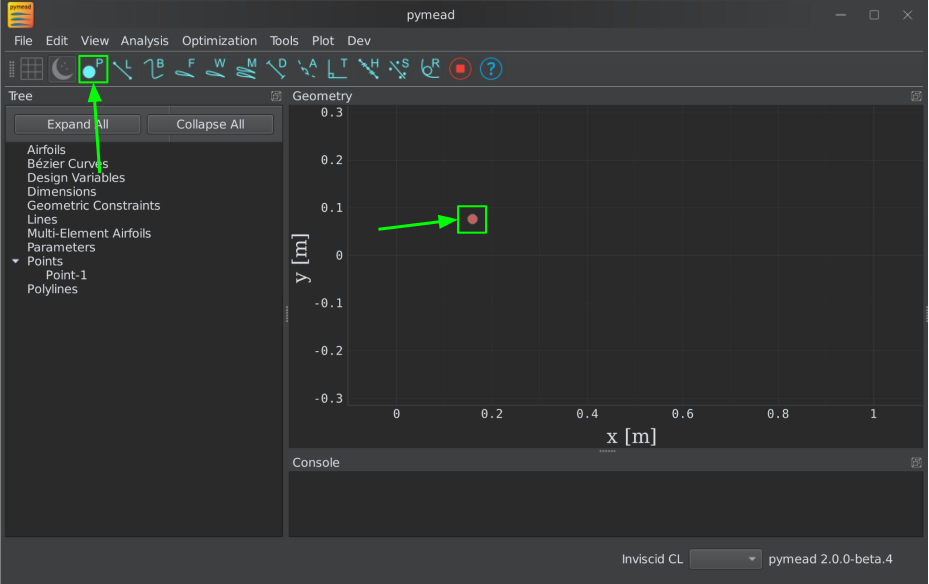
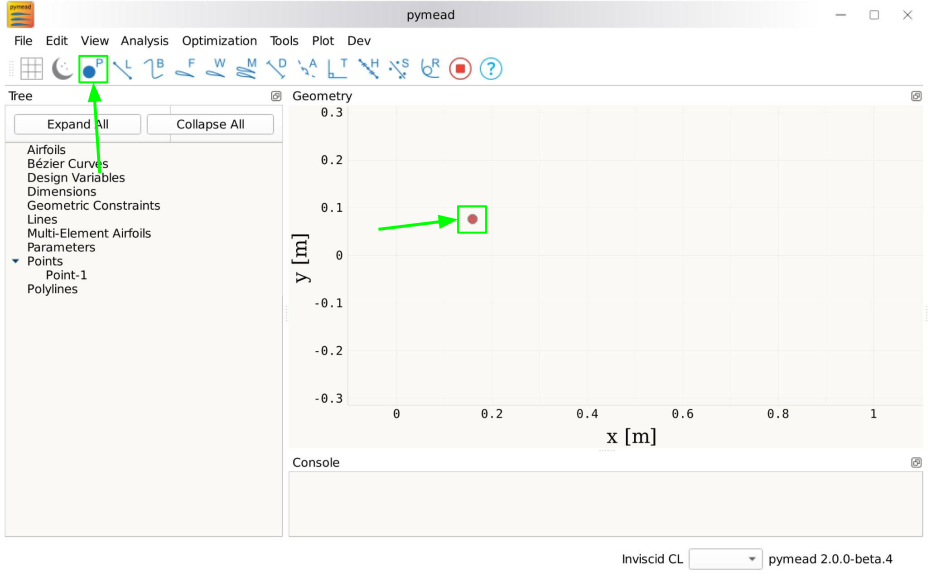
To create a point, first either press the P key or left-click on the “Point” button in the toolbar (see the image below). Then, left-click on the geometry canvas to place the point. You can continue clicking on the canvas to create additional points. Press the Esc key to stop creating points.
To add points from a file, select File → Import → Points from File
from the menubar. Then, click the “Choose File” button to select a text file storing a set of points. The points
should be stored row-wise, with the two columns representing the \(x\) and \(y\) value for each point.
The text file must have a .txt, .dat, or .csv file extension and be space-delimited or comma-delimited.
Note
Adding points from a file is designed for convenient construction point or Bézier control point import, not for creating points on an airfoil surface. To import an airfoil directly from a set of coordinates in a text file, use the “Web Airfoil” tool (the W shortcut).
Adding a point#
Adding a point#
Almost all types of objects can be added using methods of GeometryCollection that are named like
add_<object-name>. For example, to add a point, use the add_point method:
from pymead.core.geometry_collection import GeometryCollection
geo_col = GeometryCollection()
p = geo_col.add_point(0.2, -0.1)
print(f"{p.name() = }")
print(f"{p.x().value() = }")
print(f"{p.y().value() = }")
Notice that these object-add methods always return the object that is created. The above code block illustrates how to
access attributes of the object. If the object instance is not assigned to a variable (p in the previous example),
the object can be accessed from the geometry collection’s container dictionary. For example, to access the point
object, the following code can be used after the point is added:
p = geo_col.container()["points"]["Point-1"]
Point Modification#
There are several ways to change the location of a point object:
Click and drag: Hold down left-click on the point in the geometry canvas. Then, move the mouse to the desired location while still holding left-click.
Arrow keys: To make small changes to the point’s position, left-click once on the point. Then, press or hold down any of the arrow keys to move the point in the corresponding direction. To make larger changes, hold the Shift key while pressing/holding the arrow keys.
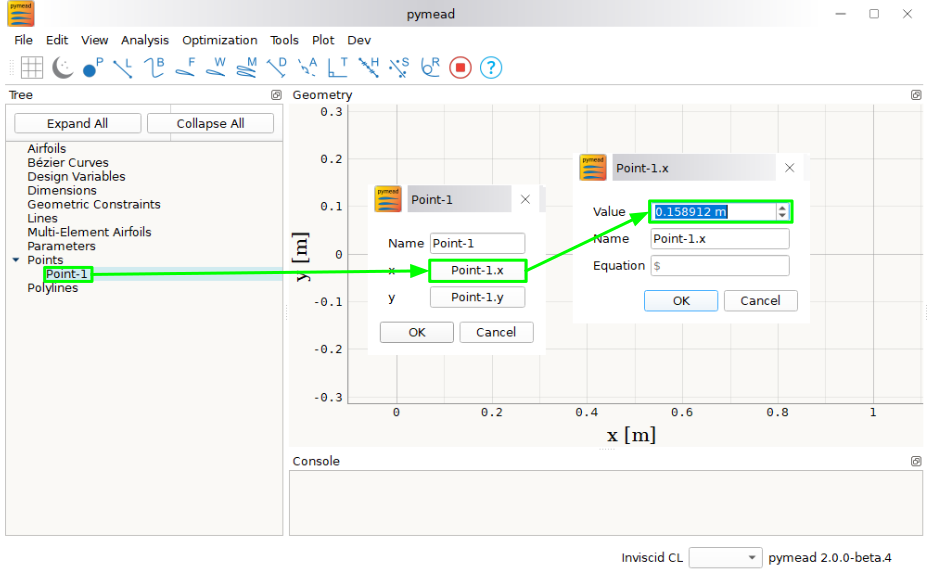
Number keys: To directly the specify the value of the point’s \(x\) or \(y\) position, first double-click on the point’s name in the parameter tree (left-hand side of the figure below). Then, press the button corresponding either to the \(x\) or \(y\) value in the dialog that appears. In the final dialog, modify the value in any of these ways:
Click the up/down arrows on the right-hand side of the value spin box.
Click inside the value spin box and use the up/down arrows on the keyboard for small changes or the Page Up/Page Down keys for larger changes.
Select the numerical value by either triple-clicking it or by clicking inside the value spin box and pressing Ctrl+A. Then, use the number keys on the keyboard to specify a value.

Specifying a point’s \(x\)-value#
Specifying a point’s \(x\)-value#
Rather than setting the value of a point’s x and y parameters individually, the
normal way of modifying a point’s location is by using the request_move method of a
Point object. This allows constraints and bounds to be enforced properly, and
the point movement may be ignored if the point is at a design variable boundary
or the point is the target of a constraint. This method can be called by running
the following code:
p0 = geo_col.add_point(0.5, 0.3)
p0.request_move(0.2, 0.1)
The point should now be located at \((0.2,0.1)\), which can be verified by
checking p0.x().value() and p0.y().value() as before.
Point Deletion#
To delete a single point, select the point by either left-clicking on the point in the geometry canvas or by left-clicking on the point’s name in the parameter tree. Then, delete the object by either pressing the Delete key or by right-clicking on the point’s name in the parameter tree and left-clicking the “Delete” option.
To delete multiple points at once, first select the points by either left-clicking on one point at a time in the geometry canvas or by holding Shift or Ctrl and clicking the names of the points in the parameter tree. Then, delete the points by either pressing the Delete key or by right-clicking on any of the selected points’ names in the parameter tree and left-clicking the “Delete” option.
To delete a point, use the remove_pymead_obj method of the GeometryCollection. This
can be done either directly by reference…
p0 = geo_col.add_point(0.1, 0.3)
geo_col.remove_pymead_obj(p0)
…or by retrieving the object reference from the container and removing by reference:
geo_col.add_point(0.1, 0.3)
p0 = geo_col.container()["points"]["Point-1"]
geo_col.remove_pymead_obj(p0)
Exposing x & y Params#
To prevent the parameter/design variable space from becoming cluttered, the \(x\)- and \(y\)-values of each point do not show up under “Parameters” in the parameter tree by default. To expose the \(x\) and \(y\) parameters of a particular point:
Right-click on the point’s name in the Parameter Tree and click “Expose x and y Parameters”. For a point named “Point-1”, this will add “Point-1.x” and “Point-1.y” to the “Parameters” sub-container in the parameter tree.
Use the expose_point_xy method of the GeometryCollection:
p0 = geo_col.add_point(0.2, 0.3)
geo_col.expose_point_xy(p0)
To cover the x and y parameters (the inverse operation of “expose”):
Right-click on either of the newly created x or y parameters in the
Parameter Tree and click “Cover x and y Parameters”. For a point named
“Point-1”, this will remove “Point-1.x” and “Point-1.y” from
the “Parameters” sub-container in the parameter tree.
Use the cover_point_xy method of the GeometryCollection:
p0 = geo_col.add_point(0.2, 0.3)
geo_col.expose_point_xy(p0)
geo_col.cover_point_xy(p0)
Point Promotion#
To allow the optimizer to change the value of either or both of these parameters, the x and y
parameters must be promoted to design variables. This can be done as follows, after first
exposing the \(x\) and \(y\) parameters as described in point-expose:
Right-click on the newly created parameters in the parameter tree and click “Promote to Design Variable.” The inverse of this operation can be performed by selecting both parameters in the Parameter Tree, right-clicking, and selecting “Demote to Parameter”. Performing either of these actions will move the parameters to the respective sub-containers in the Parameter Tree.
Use the promote_param_to_desvar method of the GeometryCollection. For example:
p0 = geo_col.add_point(0.3, 0.2)
geo_col.expose_point_xy(p0)
geo_col.promote_param_to_desvar(p0.x())
geo_col.promote_param_to_desvar(p0.y())
To reverse this operation, use the demote_desvar_to_param method. For example:
geo_col.demote_desvar_to_param(p0.x())
geo_col.demote_desvar_to_param(p0.y())
Performing the promotion and demotion will move "Point-1.x" and "Point-1.y"
from the "params" sub-container to the "desvar" sub-container and
from the "desvar" sub-container to the "params" sub-container, respectively.
Lines#
Lines serve two major purposes in pymead: blunt trailing edge construction and flat airfoil surface section
construction. In fact, pymead requires that lines be used to close blunt trailing edges for Airfoil objects
to be created. These are created by default when adding an airfoil from Airfoil Tools; take the NASA supercritical
airfoil sc20012 (generated with the sc20012-il code in the “Web Airfoil” tool) for example:
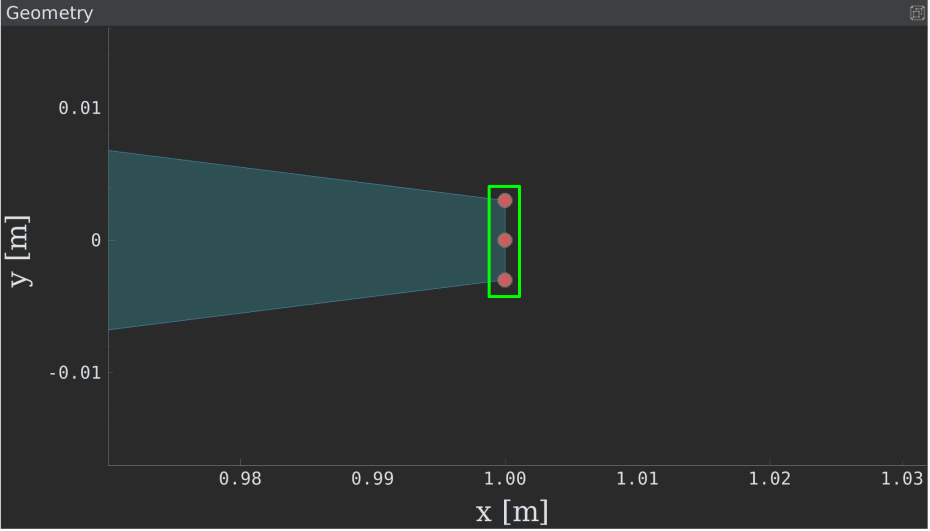
Trailing edge line for the sc20012 airfoil#
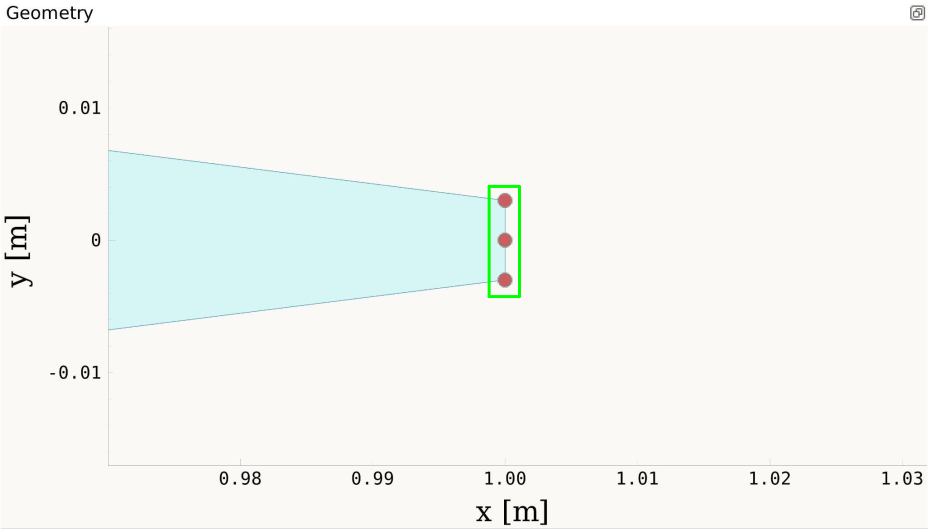
Trailing edge line for the sc20012 airfoil#
Notice that two lines are created: one from the trailing edge point to the trailing edge upper surface point, and another from the trailing edge point to the trailing edge lower surface point. More information about airfoil trailing edges can be found in the “Airfoil” section.
Line Creation#
To create a line, first either press the L key or left-click on the “Line” button in the toolbar (see the image below). Then, left-click two different points in the geometry canvas to add a line between them. Continue to select pairs of points to add more lines, or press the Esc key to stop generating lines.

Adding a line#

Adding a line#

Adding/deleting multiple lines#

Adding/deleting multiple lines#
Lines can be constructed with either a pymead.core.point.PointSequence object, or by
directly using a list of points:
p0 = geo_col.add_point(0.5, 0.1)
p1 = geo_col.add_point(1.0, -0.2)
geo_col.add_line([p0, p1])
Line Deletion#
To delete a single line, select the line by left-clicking on the line’s name in the parameter tree. Then, delete the object by either pressing the Delete key or by right-clicking on the line’s name in the parameter tree and left-clicking the “Delete” option. Lines can also be deleted by right-clicking on the line in the geometry canvas and selecting Modify Geometry → Remove Curve from the context menu that appears.
To delete multiple lines at once, first select the lines by holding Shift or Ctrl and clicking the names of the lines in the parameter tree. Then, delete the lines by either pressing the Delete key or by right-clicking on any of the selected lines’ names in the parameter tree and left-clicking the “Delete” option.
If either of the points associated with the line are no longer needed, the line can also be deleted by deleting either of the points to which the line is attached (see the GIF above).
To delete a line, use the remove_pymead_obj method of the GeometryCollection. This
can be done either directly by reference…
p0 = geo_col.add_point(0.1, 0.3)
p1 = geo_col.add_point(0.3, 0.2)
line = geo_col.add_line([p0, p1])
geo_col.remove_pymead_obj(line)
…or by retrieving the object reference from the container and removing by reference:
line = geo_col.container()["lines"]["Line-1"]
geo_col.remove_pymead_obj(line)
A line can also be deleted by deleting either of its two parent points.
Bézier Curves#
The core of pymead’s geometric parametrization code is built around Bézier curves. Bézier curves are a subclass of B-splines, which are in turn a subclass of Non-Uniform Rational B-Splines (NURBS). More specifically, Bézier curves are uniform, non-rational, clamped B-splines. Uniform means that Bézier curves have uniform knot vectors. Non-rational means that Bézier curves can be represented by non-rational polynomials (e.g., \(t^2 + 1\) as opposed to \(\frac{t^2+1}{t^3+2}\)). Clamped means that Bézier curves have the useful property that they start at their starting control point and end at their ending control point. In addition, the local curve tangent at the endpoints is equal to slope of the line connecting the first and second or last and second-to-last control points. This property is shown visually in the figure below.

Cubic Bézier curve#

Cubic Bézier curve#
Bézier curves also have the property that the control points have global control over the shape of the curve, which is not generally the case with NURBS curves. Global control means that changing the location of a control point changes the shape of the entire curve, except at the curve endpoints. This is illustrated in the animation below.

Cubic Bézier curve animation#

Cubic Bézier curve animation#
The degree of the Bézier curve (one less the number of control points) influences the amount of global control each individual control point has. Increasing the number of control points further localizes the control of each individual control point.
Mathematical Description#
Bézier curves are described by the following mathematical formula:
where \(n\) is the order of the Bézier curve (equal to one less the number of control points); \(\vec{P}_i\) is the control point vector at the ith index of the form \([x_i,y_i]^T\); \(t\) is a parameter, generally in the range \([0,1]\) that describes the position on the Bézier curve; and \(B_{i,n}(t)\) is the Bernstein polynomial, given by
Note that the shape of this Bernstein polynomial is influenced only by the curve degree. The curve itself is affected by a combination of the curve degree as well as the location of the control points given by \(\vec{P}_i\), which are effectively weighting values for the Bernstein polynomial.
Bézier Creation#
To create a Bézier curve, first either press the B key or left-click on the “Bézier” button in the toolbar (see the image below). Then, left-click at least three different points in the geometry canvas to and press the Enter key to add a line between them. Continue to select sets of three or more points to add more Bézier curves, or press the Esc key to stop generating curves.
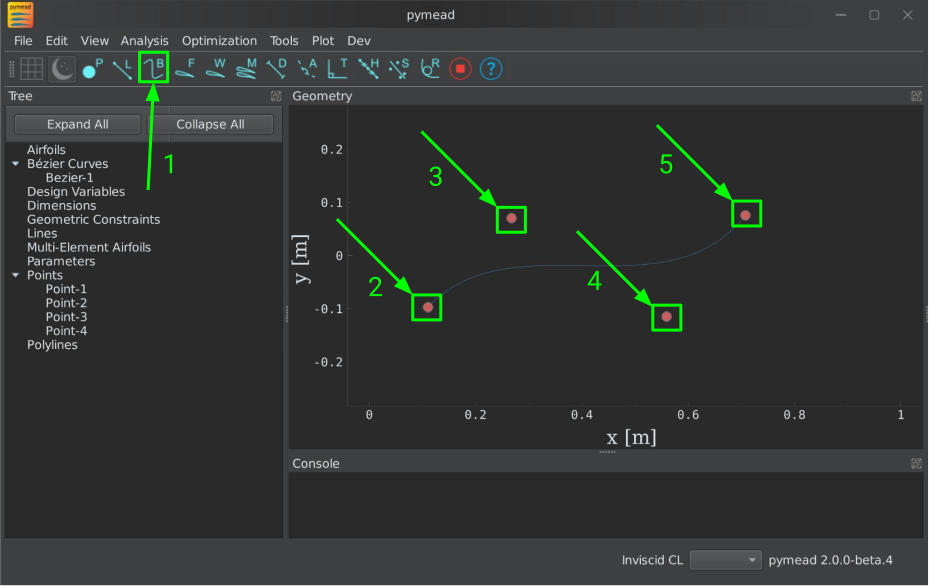
Adding a Bézier curve#
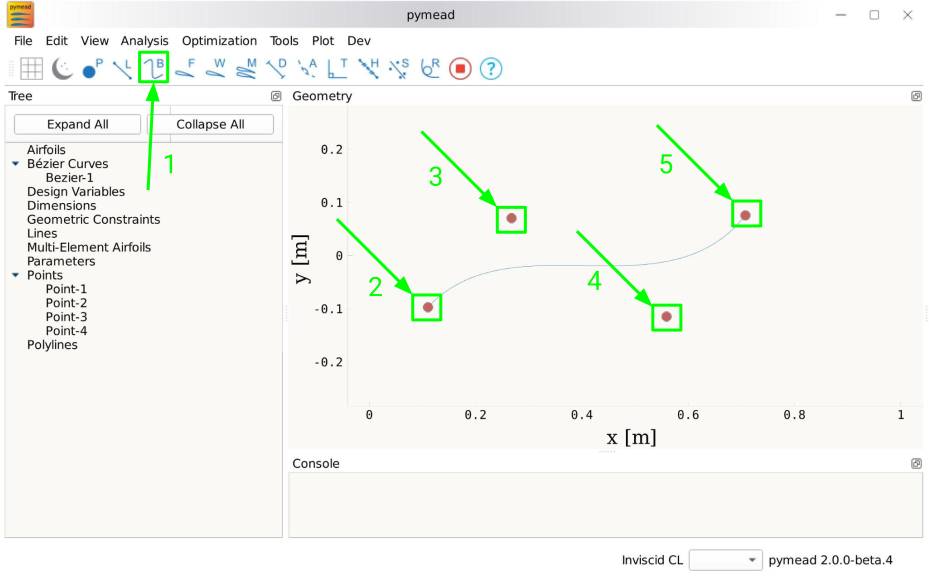
Adding a Bézier curve#
Similarly to lines, Bézier curves can be constructed with either a pymead.core.point.PointSequence
object, or by directly using a list of points:
p0 = geo_col.add_point(0.5, 0.1)
p1 = geo_col.add_point(1.0, -0.2)
p2 = geo_col.add_point(0.8, 0.7)
geo_col.add_bezier([p0, p1, p2])
Note
Creating a Bézier curve with only two control points (a linear Bézier curve) is effectively the same as generating a line! Thus, this is not allowed in pymead for simplicity; please use a line instead. Lines can be used in conjunction with Bézier curves to produce Airfoil objects.
Inserting/Removing Bézier Control Points#
To insert a control point into an existing Bézier curve, first create a new point. Then, right-click on the curve in the geometry canvas and select Modify Geometry → Insert Curve Point from the context menu that appears. Now, select first the new control point to be added, then the control point that should precede the new control point in the control point sequence. The curve should now be updated to include the new control point, with the curve’s order increased by one. To remove a control point from the curve, simply delete the point using any of the options in the Point Deletion section.

Adding a Bézier curve and inserting a control point#

Adding a Bézier curve and inserting a control point#
To insert a control point into an existing Bézier curve, first create a new point. Then,
use either the insert_point method to add the point at a specific index, or
use the insert_point_after_point method to add the point after another specified point:
p0 = geo_col.add_point(0.5, 0.1)
p1 = geo_col.add_point(1.0, -0.2)
p2 = geo_col.add_point(0.8, 0.7)
b0 = geo_col.add_bezier([p0, p1, p2])
new_point_0 = geo_col.add_point(0.9, 0.6)
new_point_1 = geo_col.add_point(1.1, 0.4)
b0.insert_point(1, new_point_0)
b0.insert_point_after_point(new_point_1, p0)
Bézier Curve Deletion#
To delete a single Bézier curve, select the Bézier curve by left-clicking on the curve’s name in the parameter tree. Then, delete the object by either pressing the Delete key or by right-clicking on the curve’s name in the parameter tree and left-clicking the “Delete” option. Curves can also be deleted by right-clicking on the curve in the geometry canvas and selecting Modify Geometry → Remove Curve from the context menu that appears.
To delete multiple curves at once, first select the curves by holding Shift or Ctrl and clicking the names of the lines in the parameter tree. Then, delete the lines by either pressing the Delete key or by right-clicking on any of the selected curves’ names in the parameter tree and left-clicking the “Delete” option.
If only two or fewer of the points associated with the curve are no longer needed, the curve can also be deleted by deleting at least all but two points to which the curve is attached.
To delete a Bézier curve, use the remove_pymead_obj method of the GeometryCollection. This
can be done either directly by reference…
p0 = geo_col.add_point(0.5, 0.1)
p1 = geo_col.add_point(1.0, -0.2)
p2 = geo_col.add_point(0.8, 0.7)
b0 = geo_col.add_bezier([p0, p1, p2])
geo_col.remove_pymead_obj(b0)
…or by retrieving the object reference from the container and removing by reference:
line = geo_col.container()["bezier"]["Bezier-1"]
geo_col.remove_pymead_obj(line)
A Bézier curve can also be deleted by deleting at least all but two of its parent points.
Airfoils#
An airfoil in pymead is simply defined as any closed set of curves containing a leading edge point, a trailing edge point, and, optionally, a trailing edge upper surface point and a trailing edge lower surface point, all of which must lie on the closed set of curves.
The trailing edge point is used to define the chord length and angle of attack for the airfoil. In the normal case, the trailing edge is the midpoint (or any point between) the trailing edge upper and lower surface points. Two lines should be drawn from the trailing edge point in this case, one to the trailing edge upper surface point and one to the trailing edge lower surface point. Alternatively, the trailing edge point can be set to the same point as either the trailing edge upper surface point or the trailing edge lower surface point, in which case only one line is required.
The trailing edge upper surface point and trailing edge lower surface point are not used in the case of a thin airfoil (in this case, the trailing edge point is used as both the trailing edge upper surface point and trailing edge lower surface point).
Airfoil Creation#
The primary method which gives full control over the shape of the airfoil is started using the F key. This method creates an airfoil from any closed set of lines, polylines, or Bézier curves. After clicking the “Airfoil” button or pressing the F key, selecting the appropriate points using the dropdown menus. For a thin airfoil, check the corresponding “thin airfoil box.” The trailing edge upper surface end and trailing edge lower surface end points need not be selected if this box is checked. Press “OK” to accept the changes made in the dialog. If the airfoil has been defined successfully, the airfoil should now be shaded. Hover over the shaded region to see the name of the airfoil.
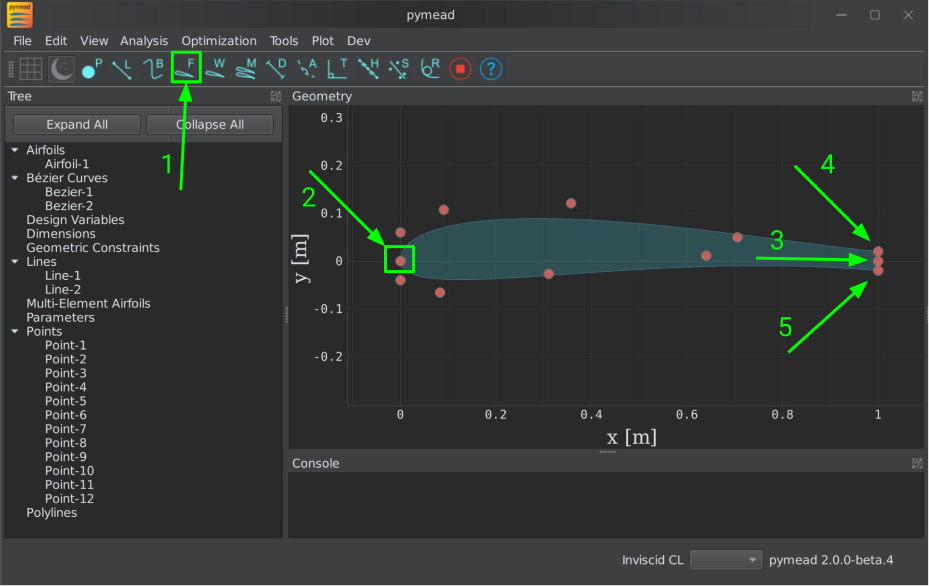
Adding an airfoil with a blunt trailing edge#

Adding an airfoil with a blunt trailing edge#
Airfoils can also be added as polylines from coordinates. These coordinates can originate from Airfoil Tools or from a text/dat file. To access either of these methods for creating an airfoil, press the “Web Airfoil” button in the toolbar or press the W key. This will pop up a dialog window that looks like this:

Adding an airfoil from the web#
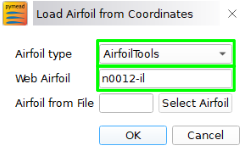
Adding an airfoil from the web#
Type in the tag for the airfoil (the identifier of the airfoil as shown on Airfoil Tools, not the full name of the airfoil) in the “Web Airfoil” field. Then, press the Enter key. An Airfoil object should now be present in the geometry canvas representing this airfoil. This airfoil contains only a polyline (a series of lines connecting each subsequent pair of airfoil coordinates) and two Line objects if the airfoil has a blunt trailing edge.
To load an airfoil from a .txt, .dat, or .csv file, press the “Web Airfoil” button in the toolbar or press
the W key. Now, select the “Coordinate File” option from the drop-down menu. Then, press the “Select Airfoil”
button to select a file. The file has to have one of the aforementioned extensions, and the coordinates should
be listed row-wise, starting at the trailing edge upper surface point and moving counter-clockwise to the trailing
edge lower surface point. The file must also be space-delimited.
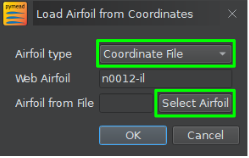
Adding an airfoil from a text file#
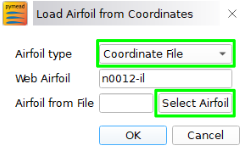
Adding an airfoil from a text file#
To add an airfoil, use the add_airfoil method of the GeometryCollection. The leading_edge
and trailing_edge arguments must be assigned Point objects, but the upper_surf_end
and lower_surf_end can be left unassigned (or set to None) in the case of a thin airfoil.
Thin airfoil example
# Define the array of control points for the airfoil's Bézier curves
upper_curve_array = np.array([
    [0.0, 0.0],
    [0.0, 0.05],
    [0.05, 0.05],
    [0.6, 0.04],
    [1.0, 0.0]
])
lower_curve_array = np.array([
    [0.0, -0.05],
    [0.05, -0.05],
    [0.7, 0.01]
])

# Generate the point sequences
point_seq_upper = PointSequence([geo_col.add_point(xy[0], xy[1]) for xy in upper_curve_array])
point_seq_lower = PointSequence([point_seq_upper.points()[0],
                                *[geo_col.add_point(xy[0], xy[1]) for xy in lower_curve_array],
                                point_seq_upper.points()[-1]])

# Add the Bézier curves
bez_upper = geo_col.add_bezier(point_seq_upper)
bez_lower = geo_col.add_bezier(point_seq_lower)

# Create the airfoil
airfoil = geo_col.add_airfoil(point_seq_upper.points()[0],
                              point_seq_upper.points()[-1],
                              upper_surf_end=None,
                              lower_surf_end=None
                              )
Blunt airfoil example
# Define the array of control points for the airfoil's Bézier curves
upper_curve_array = np.array([
    [0.0, 0.0],
    [0.0, 0.05],
    [0.05, 0.05],
    [0.6, 0.04],
    [1.0, 0.0025]
])
lower_curve_array = np.array([
    [0.0, -0.05],
    [0.05, -0.05],
    [0.7, 0.01],
    [1.0, -0.0025]
])

# Generate the point sequences
point_seq_upper = PointSequence([geo_col.add_point(xy[0], xy[1]) for xy in upper_curve_array])
point_seq_lower = PointSequence([point_seq_upper.points()[0],
                                *[geo_col.add_point(xy[0], xy[1]) for xy in lower_curve_array]])

# Add the Bézier curves
bez_upper = geo_col.add_bezier(point_seq_upper)
bez_lower = geo_col.add_bezier(point_seq_lower)

# Add the trailing edge at (1, 0)
te_point = geo_col.add_point(1.0, 0.0)

# Add lines connecting the trailing edge to the trailing edge upper and lower points
te_upper_line = geo_col.add_line(PointSequence([point_seq_upper.points()[-1], te_point]))
te_lower_line = geo_col.add_line(PointSequence([point_seq_lower.points()[-1], te_point]))

# Create the airfoil
airfoil = geo_col.add_airfoil(leading_edge=point_seq_upper.points()[0],
                              trailing_edge=te_point,
                              upper_surf_end=point_seq_upper.points()[-1],
                              lower_surf_end=point_seq_lower.points()[-1]
                              )
Airfoil Deletion#
An airfoil can be deleted by left-clicking the airfoil’s name in the parameter tree and pressing the Delete key or by right-clicking the airfoil’s name in the parameter tree and clicking the Delete option from the context menu that appears. Alternatively, an airfoil can be deleted by deleting any of its associated points or curves.
To delete a Bézier curve, use the remove_pymead_obj method of the GeometryCollection. This
can be done either directly by reference…
a0 = geo_col.add_airfoil()
geo_col.remove_pymead_obj(a0)
…or by retrieving the object reference from the container and removing by reference:
airfoil = geo_col.container()["airfoils"]["Airfoil-1"]
geo_col.remove_pymead_obj(airfoil)
An airfoil can also be deleted by deleting any of its parent points or curves.
Multi-Element Airfoils#
Multi-element airfoils do not have any inherent geometric representation, but are simply ordered collections
of Airfoil objects. These multi-element airfoils must be created, even in the case of a single airfoil, to run
an MSES analysis or optimization.
Important
The first airfoil assigned to the multi-element airfoil will be used to scale the entire airfoil system when analyzed in MSES. Take, for example, a two-airfoil system where the first airfoil has a leading edge at \((0,0)\) mm and a trailing edge at \((500,0)\) mm and the second airfoil has a leading edge at \((100,-200)\) mm and a trailing edge at \((600,-100)\) mm. This airfoil system will be analyzed in MSES with leading edges at \((x/c,y/c)=(0,0),(0.2,-0.4)\) and trailing edges at \((x/c,y/c)=(1,0),(1.2,-0.2)\), respectively.
Multi-Element Airfoil Creation#
To create a multi-element airfoil, select the “Multi-Element Airfoil” button from the toolbar or press the M key. Then, hold Shift or Ctrl while left-clicking each of the airfoil names from the parameter tree. Then, click anywhere on the geometry canvas and press the Enter key.
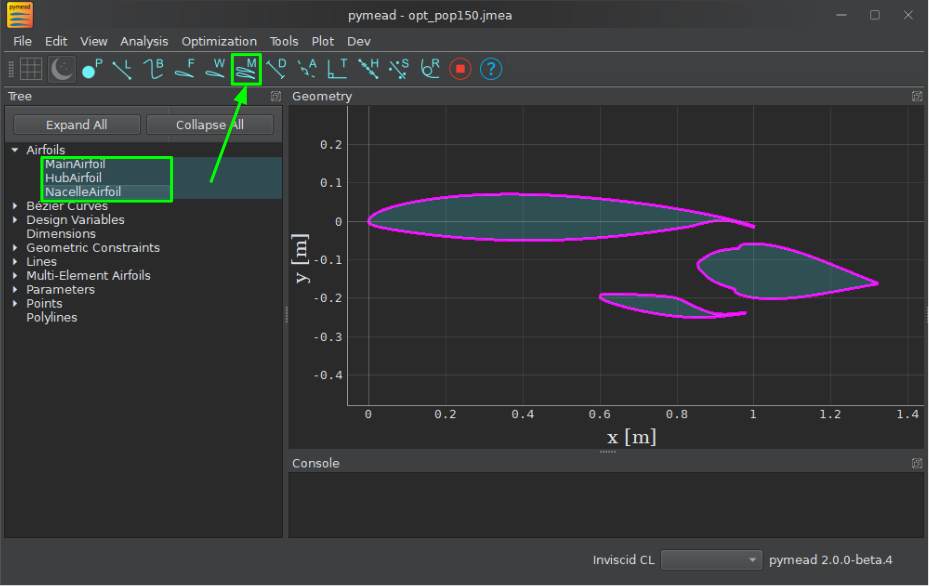
Adding a multi-element airfoil#

Adding a multi-element airfoil#
To create a multi-element airfoil, use the add_mea method of the Geometry Collection and
add the airfoils as a list in any order.
a0 = geo_col.add_airfoil(...)
a1 = geo_col.add_airfoil(...)
a2 = geo_col.add_airfoil(...)
geo_col.add_mea([a0, a1, a2])
Multi-Element Airfoil Deletion#
A multi-element airfoil can be deleted by left-clicking the multi-element airfoil’s name in the parameter tree and pressing the Delete key or by right-clicking the multi-element airfoil’s name in the parameter tree and clicking the Delete option from the context menu that appears.
To delete multi-element airfoil, use the remove_pymead_obj method of the GeometryCollection. This
can be done either directly by reference…
m0 = geo_col.add_mea()
geo_col.remove_pymead_obj(m0)
…or by retrieving the object reference from the container and removing by reference:
mea = geo_col.container()["mea"]["MEA-1"]
geo_col.remove_pymead_obj(mea)
A multi-element airfoil can also be deleted by deleting any of its parent airfoils.